Building an Isolated Malware Analysis Lab in VirtualBox
Three VMs (Kali, Windows XP, Windows 10) on a host-only network that can talk to each other but not the internet, with INetSim faking the internet for whatever runs inside. Plus the two problems I hit along the way.
Before I analyze anything that might be live malware, I want somewhere it can run without reaching the real internet or my home network. This post covers the lab I built for that: three virtual machines on one isolated network, and a fake internet so samples that phone home get an answer I can log.
The Layout
| VM | Operating system | Role | IP address |
|---|---|---|---|
| Windows 10 | Windows 10 Enterprise Evaluation | Modern detonation target | 192.168.56.101 |
| Windows XP | Windows XP Professional | Legacy target (older samples) | 192.168.56.102 |
| Kali | Kali Linux | Analysis box, runs INetSim | 192.168.56.103 |
The host is Ubuntu with 15 GB of RAM, and the hypervisor is VirtualBox 7.2.6.
Why VirtualBox and not VMware
Most malware lab guides use VMware. Before installing anything I checked what was already on the host. VirtualBox 7.2.6 was installed, and its kernel modules (vboxdrv, vboxnetflt, vboxnetadp) were already built and loaded for my kernel. VMware doesn’t officially support that kernel version and would have needed a third-party module patch before any VM could boot. VirtualBox’s Host-only Adapter does the same job as VMware’s host-only vmnet, so I stayed with VirtualBox.
Reusing disks I already had
I didn’t download fresh images. Kali and Windows 10 already existed on the host as libvirt/KVM machines, and Windows XP was an old VMware VM. qemu-img converts all of them to VirtualBox’s format:
1
2
3
4
5
6
7
8
# Windows XP: VMware snapshot chain -> VDI
qemu-img convert -O vdi \
  "Windows XP Professional.vmwarevm/Virtual Disk-000002.vmdk" \
  WinXP/WinXP.vdi

# Kali and Windows 10: libvirt qcow2 -> VDI
qemu-img convert -O vdi /var/lib/libvirt/images/Kali_Linux.qcow2 Kali/Kali.vdi
qemu-img convert -O vdi /var/lib/libvirt/images/win10.qcow2      Win10/Win10.vdi
For the XP machine, point the conversion at the latest disk in the snapshot chain (-000002.vmdk here), not the base disk. The base disk doesn’t have the changes made after the first snapshot.
Step 1: The Isolated Network
1
VBoxManage hostonlyif create
That created vboxnet0 at 192.168.56.1/24 with DHCP handing out .101 to .254. Each VM gets exactly one network adapter, set to Host-only on vboxnet0. No NAT and no bridged adapter.
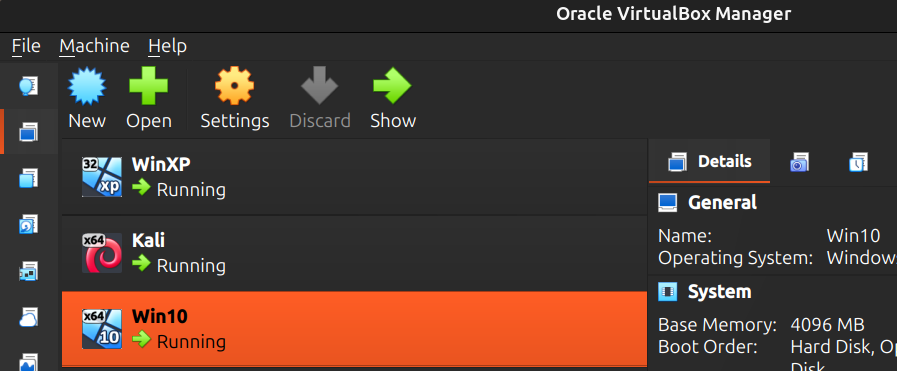 WinXP, Kali and Win10 all running on the isolated network.
Step 2: Prove It’s Actually Isolated
“Should be isolated” isn’t good enough, so I tested both directions.
They can reach each other. I pinged every directed pair, six in total. All six had 0% loss.
They can’t reach the internet. I tested each machine against a hostname (google.com) and a raw IP (8.8.8.8). Testing both matters: the hostname checks DNS, and the IP checks routing even if DNS were somehow answered.
| VM | ping google.com |
ping 8.8.8.8 |
|---|---|---|
| Kali | Temporary failure in name resolution | Network is unreachable |
| Windows XP | Ping request could not find host | Destination host unreachable, 100% loss |
| Windows 10 | Ping request could not find host | General failure, 100% loss |
The three error messages are different, but they all come from the same cause: the host-only network has no default gateway, so nothing leaves it.
Step 3: A Fake Internet with INetSim
A lot of malware checks for a connection before it does anything interesting. If the C2 domain doesn’t resolve or the HTTP request fails, the sample may just sit there. INetSim runs fake DNS, HTTP, SMTP, FTP and other services on the Kali box, so the sample gets an answer and every request is logged.
Installing it without breaking isolation
INetSim wasn’t on my Kali image, and Kali has no internet by design. So I added a temporary NAT adapter as a second NIC, installed the package, and removed the adapter:
1
2
3
VBoxManage modifyvm "Kali" --nic2 nat     # temporary
# inside Kali: sudo apt update && sudo apt install -y inetsim
VBoxManage modifyvm "Kali" --nic2 none    # gone again
The host-only adapter stayed untouched the whole time, and I restored the original one-adapter setup before going any further.
Binding to the lab network
By default INetSim binds to 127.0.0.1, which the Windows VMs can’t reach. One line in /etc/inetsim/inetsim.conf fixes it:
1
service_bind_address 192.168.56.103
Then sudo inetsim starts everything.
End-to-end check
From Windows 10, I browsed to http://192.168.56.103:
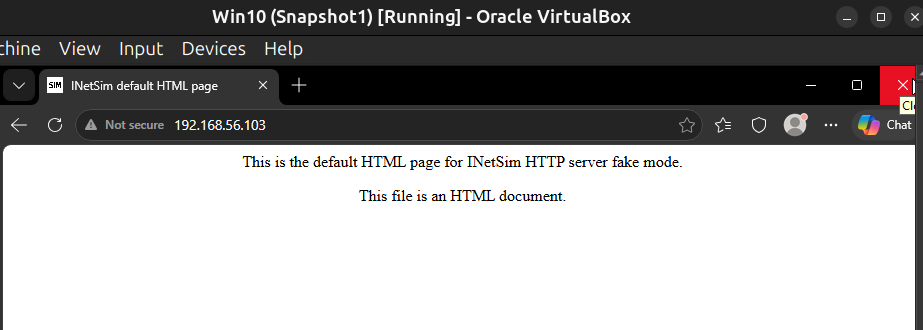 The Windows 10 browser gets INetSim’s fake HTTP page.
And on Kali, /var/log/inetsim/service.log shows the request coming in from 192.168.56.101, the default fake file being served with 200 OK, and a second request for /favicon.ico carrying the Edge user-agent:
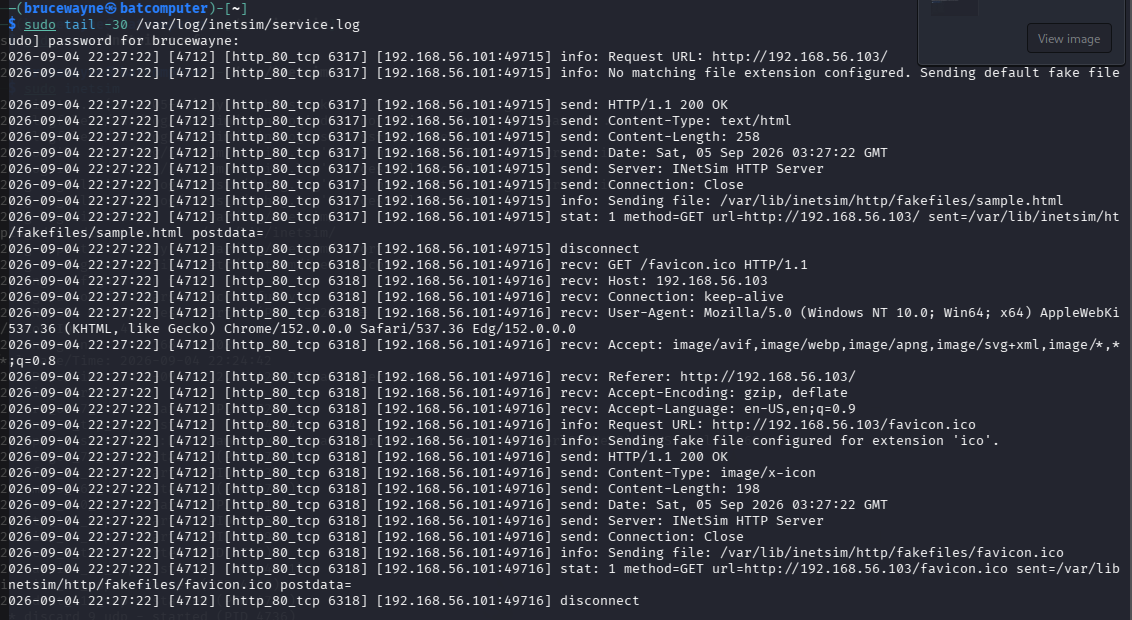 INetSim logs both requests, including the source IP and user-agent.
This is the log I’ll watch during dynamic analysis.
Two Problems I Hit
Mouse capture
None of the guests had Guest Additions, so each used a relative PS/2 mouse, and I had to press the Host key every time I moved between the host and a VM. Switching to an absolute-positioning USB tablet fixed it without installing anything in the guests:
1
2
3
VBoxManage modifyvm "WinXP" --mouse usbtablet
VBoxManage modifyvm "Kali"  --mouse usbtablet
VBoxManage modifyvm "Win10" --mouse usbtablet
A live snapshot that took down VirtualBox
With all three VMs running (2 GB + 4 GB + 1 GB of guest RAM on a 15 GB host), I took a live snapshot of XP. The host ran out of memory partway through, VBoxSVC stopped responding, and VirtualBox crashed:
1
2
3
00:25:53.280263 Changing the VM state from 'SAVING' to 'SUSPENDED'
00:26:15.330627 VirtualBoxClient: detected unresponsive VBoxSVC (hrc=NS_ERROR_ABORT)
00:26:21.367763 ERROR [COM]: ... {Cannot power down at this point in an online snapshot}
The bad part was that the XP VM process kept running as an orphan, holding about 12 GB, while VirtualBox reported the machine as powered off. I killed that process from the host, which freed about 11 GB, confirmed Kali and Windows 10 had finished saving their state before the crash, and restarted VirtualBox.
From then on I took snapshots with each VM powered off, one at a time. For a malware lab that’s the snapshot you want anyway: a clean, cold baseline to roll back to after every detonation.
Where This Leaves Me
- Three VMs on one network that can reach each other, verified in every direction
- No route to the internet, verified by name and by IP
- INetSim answering on
192.168.56.103and logging every request - A clean, powered-off snapshot of each machine to revert to
Next up is putting it to use: a full IDA Pro walkthrough of a backdoor DLL.